Fix a Google Business Profile Wrong Service Area
Google Business Profile showing the wrong service area? Learn why it happens and the exact steps to correct it so you rank in the right cities.
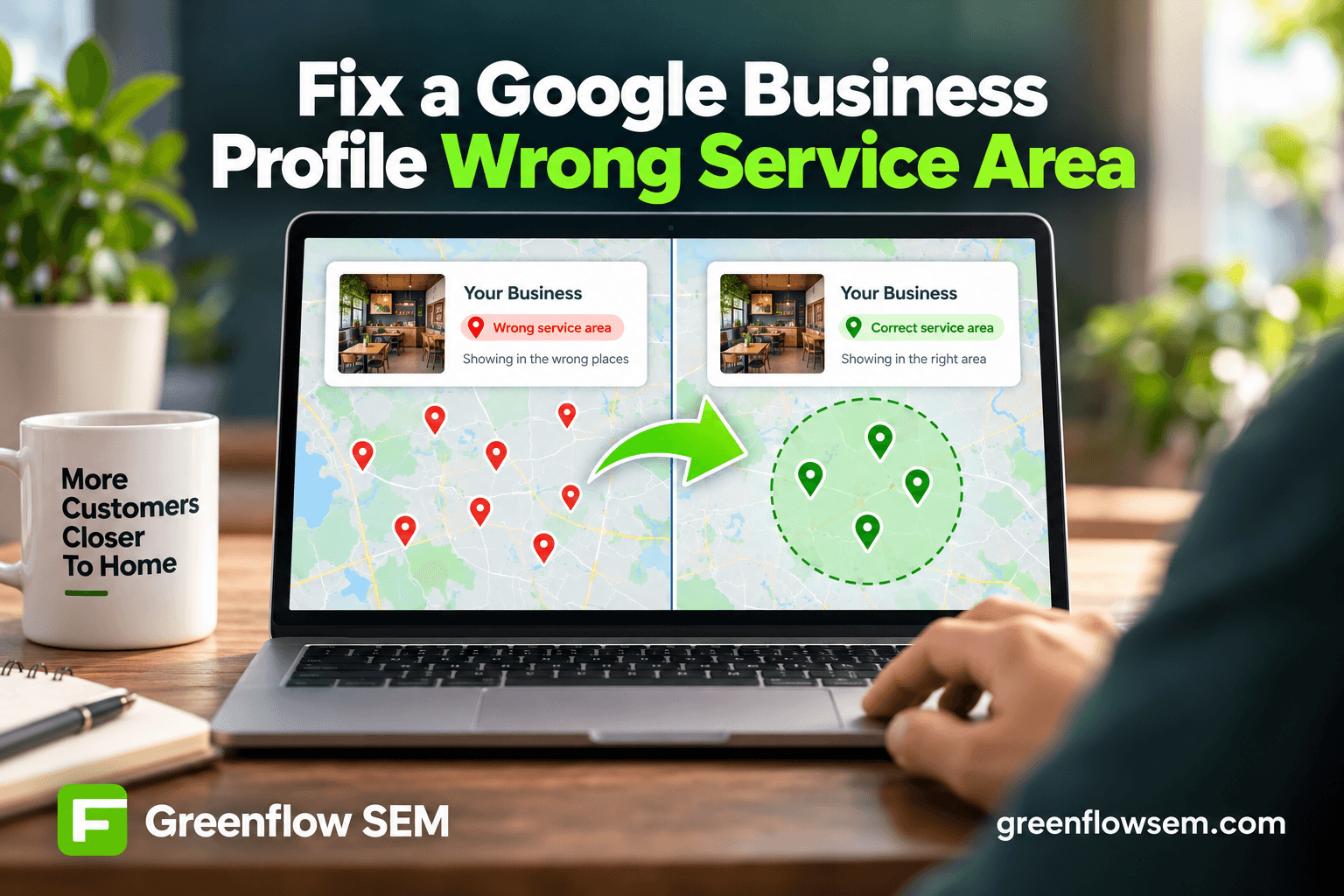
You fix a wrong service area by editing it directly in your Google Business Profile: go to Business Information, open the Service Area section, remove the cities or regions that don't belong, and add only the places you genuinely serve. If the listing still shows the wrong area after saving, the usual culprits are a mismatched business address, a duplicate profile competing for the same listing, or a "suggested edit" from Google or a third party that got auto-applied.
This guide walks through why service areas drift in the first place, how to check what Google currently has on file, the exact steps to correct it, and what to do if the fix doesn't stick. It applies mainly to service-area businesses (SABs) like plumbers, electricians, cleaners, and mobile contractors who serve customers at their location rather than a storefront.
Why Does Google Business Profile Show the Wrong Service Area?
A Google Business Profile's service area isn't something Google invents on its own, but it also isn't always exactly what you typed in either. Several things can push it off course over time.
WHY SERVICE AREAS DRIFT
- Too many areas addedDiluted relevance
- Address hidden incorrectlyGoogle autodetects area
- Duplicate listings existConflicting data
- Suggested edit acceptedArea changed silently
- Wrong category selectedWrong default radius
The most common issue we see in the accounts we manage is simply too many areas listed. Google allows up to 20 service area places per profile, but listing all 20 just because you can usually backfires. Google's local algorithm weighs relevance alongside proximity, and a profile claiming to serve 20 cities across three counties reads as less locally relevant for any single one of them than a profile that lists five or six cities it actually works in.
Duplicate listings cause a different kind of problem. If a second, unmanaged profile exists for your business, perhaps created years ago or auto-generated from a data aggregator, Google may pull conflicting signals from both. Suggested edits are another quiet cause: Google lets users, and sometimes competitors, propose changes to public profile data, and if nobody is reviewing and rejecting bad suggestions, incorrect areas can slip through.
Service-Area Businesses vs. Storefront Businesses
The fix differs slightly depending on your business type. A storefront business with walk-in customers should show its full address and typically shouldn't define a broad service area beyond the immediate vicinity. A true service-area business that drives to customers, like an HVAC company or mobile detailer, should hide its address and rely entirely on the service area field to tell Google where it operates. Mixing these up (showing an address while also claiming a huge service radius) is one of the fastest ways to confuse Google's ranking system.
How to Check What Service Area Google Currently Has on File
Before changing anything, confirm what's actually live. Search your business name directly on Google and open the Business Profile panel, or log into Google Business Profile Manager and look at the Business Information tab.
- Check the list of service area cities or regions currently shown
- Confirm whether your address is public or hidden
- Note your primary and secondary categories
- Search your business name plus a city you don't serve to see if it still shows
- Check Google Maps directly, since it can lag behind the dashboard
It's worth doing this check from a different device or logged out of your Google account, since personalized search results can mask what the general public actually sees.
How to Fix a Wrong Service Area, Step by Step
Once you know what's wrong, the fix itself is straightforward inside Google Business Profile Manager. The harder part is being disciplined about what you add back.
FIXING THE SERVICE AREA
- Audit current settingsDAY 1
- Remove irrelevant areasDAY 1
- Confirm address accuracyDAY 1-2
- Check for duplicate profilesWEEK 1
- Save and wait for reindexWEEKS 1-2
Start with the audit. Go through every area currently listed and ask honestly whether your team would actually drive there for a job today. If the answer is no, remove it. Google's own guidance is to define a service area based on the regions you're willing to visit in person, not where you'd theoretically like to get leads from.
- Sign in to Google Business Profile Manager and select your business
- Open the Business Information tab and find the Service Area section
- Remove any city, zip code, or region that's inaccurate or irrelevant
- Add back only the places you genuinely serve, keeping the list realistic
- Double-check your address visibility setting matches your business type
- Save the changes and monitor the profile over the following one to two weeks
If your business spans a large metro area like San Diego, it's usually better to list the specific cities and neighborhoods you serve rather than the entire county. This mirrors how we approach location pages for San Diego service areas: specificity beats breadth, both for ranking and for setting accurate customer expectations.
What Mistakes Make the Problem Worse?
Some habits that feel harmless actually make service area problems more likely to recur. Knowing what to avoid saves time compared to fixing it repeatedly.
SERVICE AREA BEST PRACTICES
- List cities you actually drive to
- Add every county for broader reachDilutes local relevance signals
- Keep service area realistic in distance
- Hide address for true service-area businesses
- Let every suggested edit auto-applyOpens the door to bad data
- Match category to your actual business type
Stacking in dozens of cities to try to rank everywhere tends to backfire in two ways. First, Google's relevance algorithm often rewards tightly defined, locally concentrated profiles over sprawling ones. Second, an overly broad service area can confuse customers who see your business appear for a city an hour away and wonder whether you'll actually show up for a same-day call. Our Google Business Profile optimization checklist covers this same principle across every field in the profile, not just service area.
The suggested edits issue deserves its own attention. Google periodically emails profile owners about pending suggested edits, but not everyone checks that inbox or the notifications tab inside the dashboard. Reviewing and rejecting bad suggestions on a regular basis, even monthly, prevents a wrong service area from reappearing after you've already corrected it.
How Service Area Settings Affect Map Pack Rankings
Service area accuracy isn't just about avoiding confusion. It directly influences whether you show up in the Map Pack for the searches that matter to your business.
Google's local ranking system weighs relevance, distance, and prominence. A mismatched service area muddies the relevance and distance signals at the same time. If your profile claims to serve a city 90 minutes away, Google has less confidence that you're a strong match for "near me" searches in that city, and it may also start showing you less often in the areas you actually do serve well, because the listing reads as less focused. We go deeper on the three factors behind Map Pack visibility in How to Rank in the Google Map Pack, and the service area field is one of the easiest levers to get right once you understand how it's weighed.
For businesses managing this alongside reviews, posts, and citations, it helps to treat the service area as part of a broader local SEO routine rather than a one-time setting. Our Local SEO services fold this kind of profile hygiene into ongoing management, since a profile that gets reviewed monthly is far less likely to drift off course than one that's set up once and forgotten.
What If the Fix Doesn't Stick?
Occasionally a business owner corrects the service area, waits a few weeks, and finds the old, wrong area still showing. A handful of causes explain most of these cases.
- A duplicate, unmanaged profile is still live and competing for the same business name
- A pending suggested edit reverted the change after it was accepted
- The listing is under review following a recent edit, which can temporarily restrict visibility
- Third-party data aggregators (data brokers that feed directories) are pushing old information back into Google's system
- The profile was previously suspended or flagged, which can freeze certain fields
If you suspect a duplicate profile, search your business name along with your city and look for a second listing with fewer reviews or an outdated photo. Google lets you report duplicates for merging through the support center. If the profile shows a warning banner or recently lost its verification, that's a different and more serious issue, covered in our guide on how to fix a suspended Google Business Profile.
Frequently Asked Questions
How many service areas can I add to my Google Business Profile?
Google allows up to 20 service area places per profile, but more isn't automatically better. Listing only the cities or regions you genuinely serve tends to perform better in local search than maxing out the limit, since Google's ranking system factors in relevance alongside distance.
Should I hide my business address if I have a wrong service area showing?
If you're a true service-area business that doesn't accept customers at your location, yes, your address should be hidden and your service area should do the work of telling Google where you operate. If you have a storefront customers visit, keep your address public and treat service area as a secondary signal rather than your primary location indicator.
Key Takeaways and Next Steps
A wrong service area on Google Business Profile almost always comes down to one of a few fixable issues: too many areas listed, a mismatched address setting, a duplicate profile, or an unreviewed suggested edit. The fix itself takes only a few minutes inside Business Profile Manager, though the changes can take one to two weeks to fully reflect in search results.
This week, you can realistically do the following on your own:
- Log into Google Business Profile Manager and review every city currently listed under Service Area
- Remove any area you wouldn't actually drive to for a job
- Confirm your address visibility setting matches whether you're a storefront or service-area business
- Search your business name to check for a duplicate listing
- Check your notifications tab for any pending suggested edits
If you'd rather have someone keep an eye on this alongside reviews, citations, and the rest of your local search presence, that's exactly what our Local SEO plans are built for. You're also welcome to start with a free SEO audit to see exactly where your profile stands today.